Settings
Profile Settings
Manage your personal profile and account information
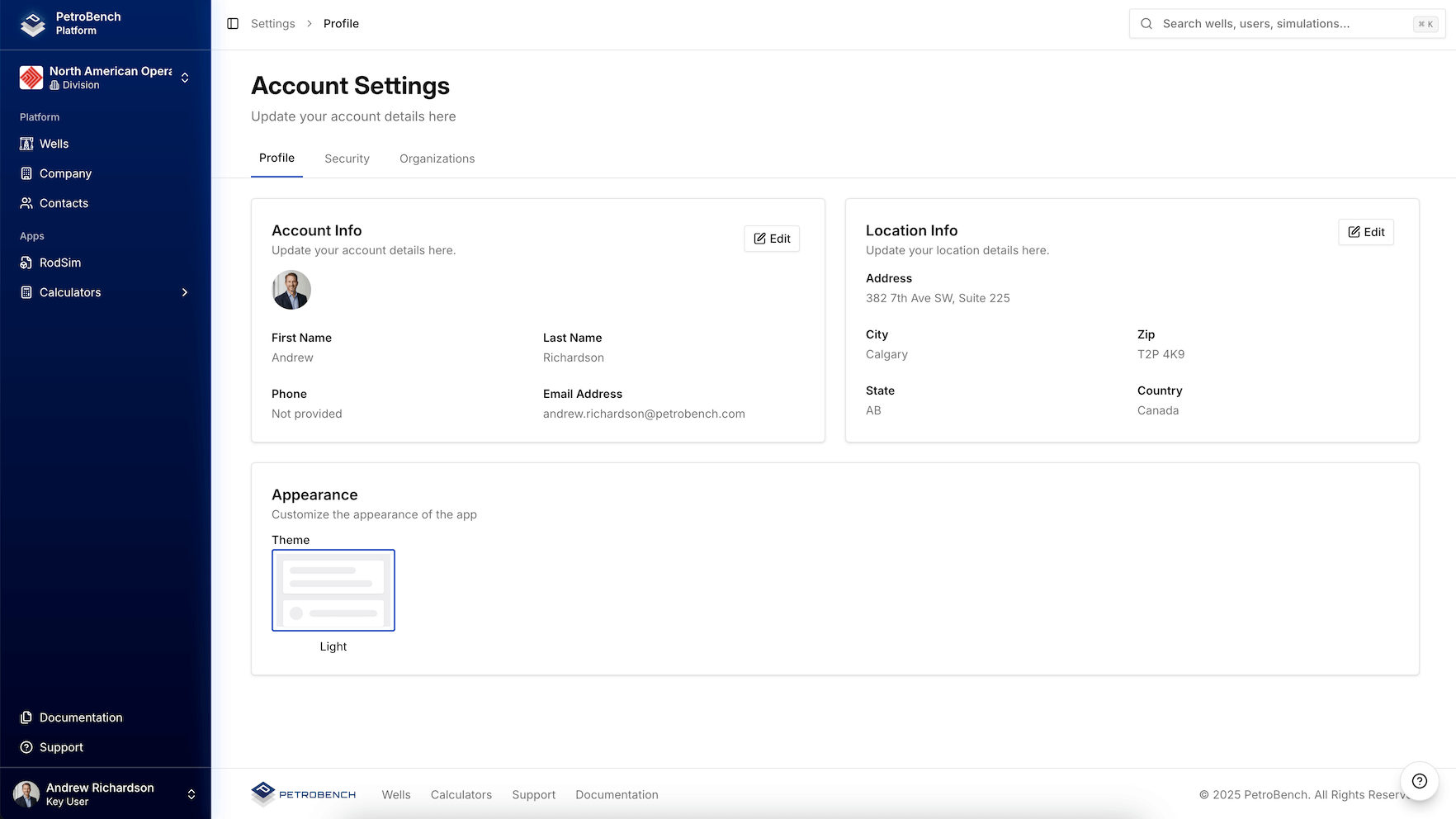
Accessing Profile Settings
- Click your avatar or name in the top-right corner
- Select Settings from the dropdown menu
- Navigate to the Profile tab
Profile Information
Basic Details
Update your personal information:
- First Name: Your first name displayed throughout the platform
- Last Name: Your last name for identification
- Email Address: Primary contact email (may be read-only)
- Phone Number: Optional contact number
- Job Title: Your role or position
Profile Photo
Upload a profile photo to personalize your account:
- Click the Change Photo button
- Select an image file (JPG, PNG)
- Crop and adjust as needed
- Click Save to update
A clear profile photo helps teammates identify you quickly in comments, assignments, and collaboration features.
Display Preferences
Configure how your profile appears:
- Display Name: How your name appears in the UI
- Timezone: Your local timezone for accurate timestamps
- Date Format: Preferred date display format
- Unit System: Imperial (ft, psi) or Metric (m, kPa)
Saving Changes
After making changes to your profile:
- Review all updated fields
- Click Save Changes
- Confirmation message appears when saved successfully
Some fields like email address may require verification before changes take effect.
Next Steps
- Configure security settings for your account
- Manage your app preferences